![Aspire Logo 202011-Sep-07-2023-03-11-02-4248-AM.webp]](https://support.aspireapp.com/hs-fs/hubfs/Aspire%20Logo%20202011-Sep-07-2023-03-11-02-4248-AM.webp?height=40&name=Aspire%20Logo%20202011-Sep-07-2023-03-11-02-4248-AM.webp)
Only Admin, Finance with transfer rights, and Finance with submit-only rights can add or delete recipients. To access the step-by-step guide for adding and deleting a recipient on your account, simply click on the links provided below:
How to add a new recipient
- On your Aspire dashboard, click on "Make a transfer" under the Frequently used actions

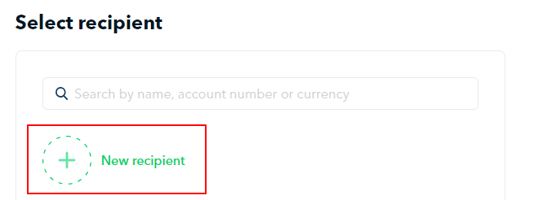
- Click on New Recipient
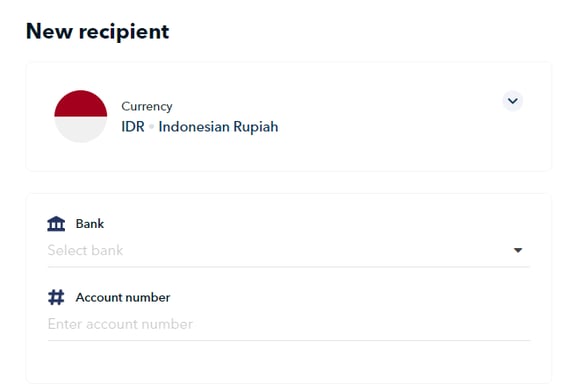
- Choose the currency of your recipient and fill out the relevant details
How to delete a saved recipient
- On your Aspire dashboard, click on "Make a transfer" under the Frequently used actions
- Search for the recipient you want to delete
- Click the three-dotted button located on the right side of their name

- Hit the delete button
Note: Only users with Admin and Finance roles have the ability to delete recipient records.
Currently, there is no option to edit an existing recipient record. To update recipient details, we recommend deleting the existing record and creating a new one with the updated information.
Questions? Please log in to the app and reach out in the chat at the bottom right corner of the screen.
Suggestions? Let us know here.