![Aspire Logo 202011.png]](https://support.aspireapp.com/hs-fs/hubfs/Aspire%20Logo%20202011.png?height=40&name=Aspire%20Logo%20202011.png)
Once claims are paid outside of Aspire, Admin, Claim Approvers, and users under the Transfer Approval Policy have the option to mark them as paid. They may mark claims as paid when the claims are in either the "Pending Review" or "Pending Payment" stage.
Access the link below to see the guide on how to do these:
Claims in the Pending Review stage
- Select the relevant claim that you want to mark as paid. You can also do this in bulk by accessing the "Review pending claims" button.
- Next, click "Approve", and choose "Approve and mark as paid"

- Once you're sure, hit "Yes I'm sure"
Claims in the Pending Payment stage
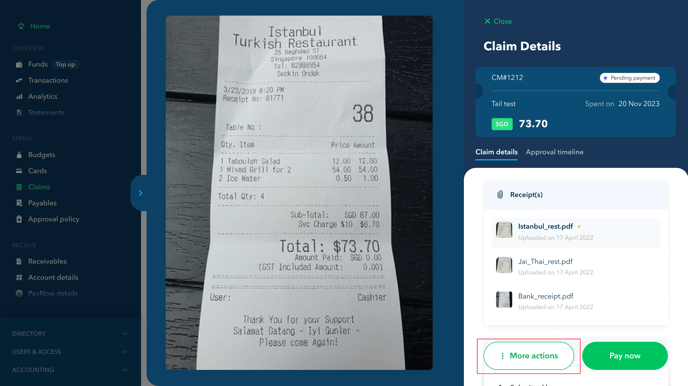
- Select the relevant claim that you want to mark as paid. You can also do this in bulk by accessing the "Pay approved claims" button.
- Next, click "More Actions" at the bottom of the claim
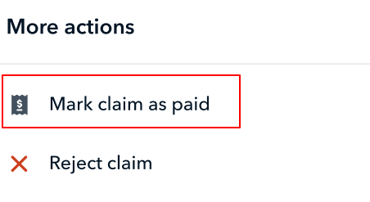
- Choose "Mark Claim as paid"
- Once you're sure, hit "Yes I'm sure"
Note!
Once you mark the claim as paid:
- There will be no payment made from the Aspire account
- If the claim was linked to a budget, then it won't impact the budget's limit
- Once the claim is marked as paid, you cannot make further changes to it.
Questions? Please log in to the app and reach out in the chat at the bottom right corner of the screen.
Suggestions? Let us know here.